
Untimer for Android is coming to Google Play.
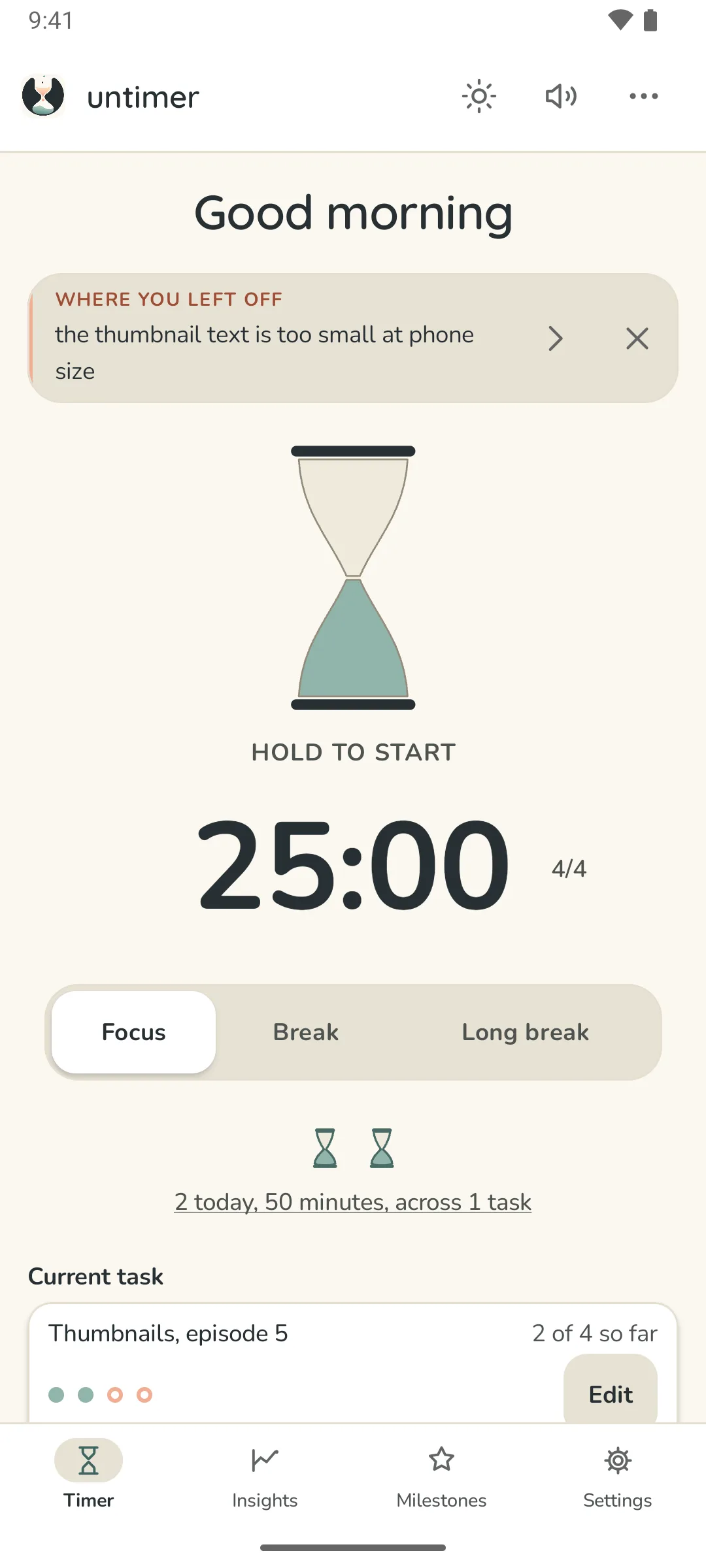
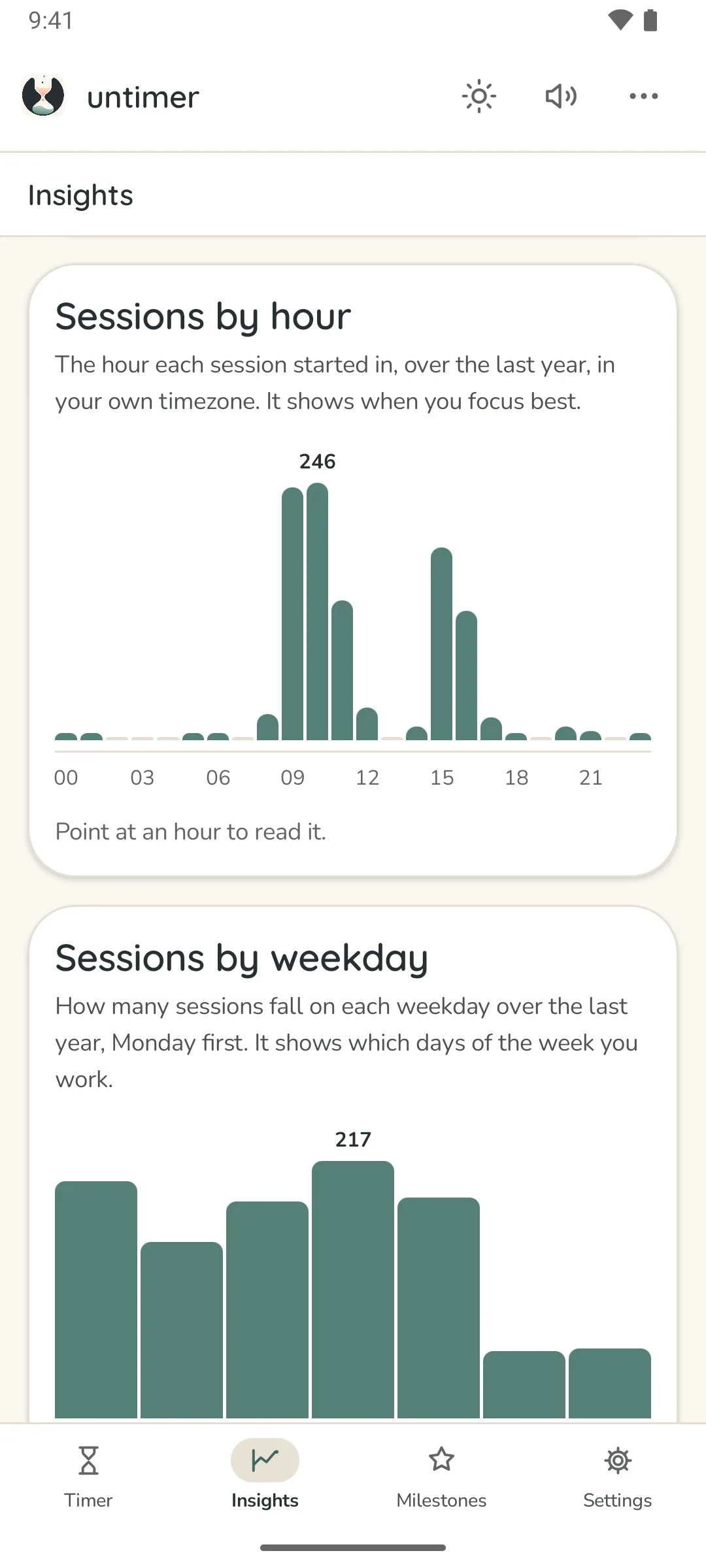
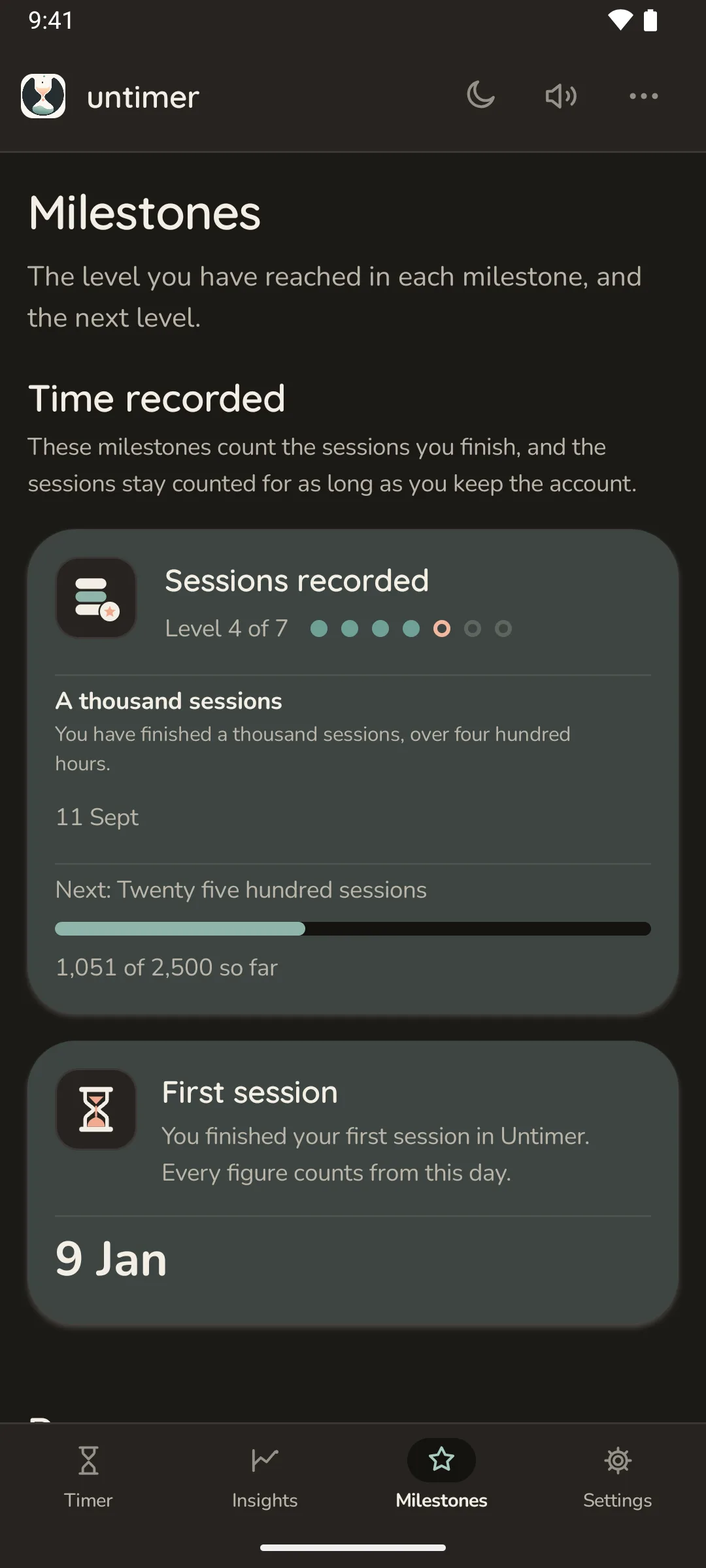
It uses the same account and the same timer as the web app. Start a session at your desk and it is on your phone. Start one on your phone and it is at your desk. These pictures show the app as it runs today.
The button opens your email app. We keep no mailing list.
What it does
The phone shows the countdown and rings at the end.
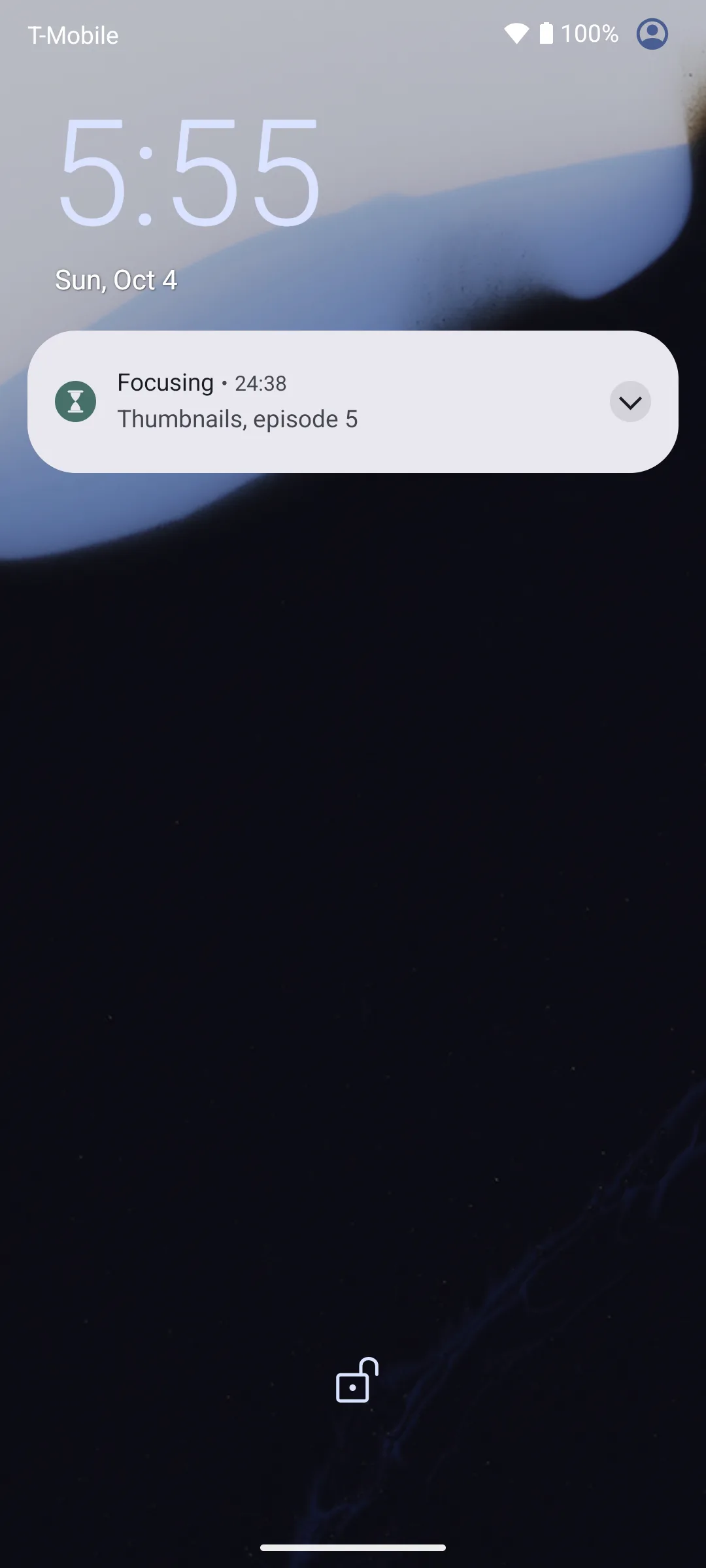
On the lock screen
Android draws the countdown as a live notification. You see it in the status bar and on the lock screen. The task you are on sits under it. Older versions of Android show an ordinary notification with the same time.
An alarm at the end
An exact alarm sounds the end of the session on time. It rings with the phone asleep in your bag or on the table. Before it rings, the phone checks with the server. A session you stopped at your desk stays quiet.
The session keeps running
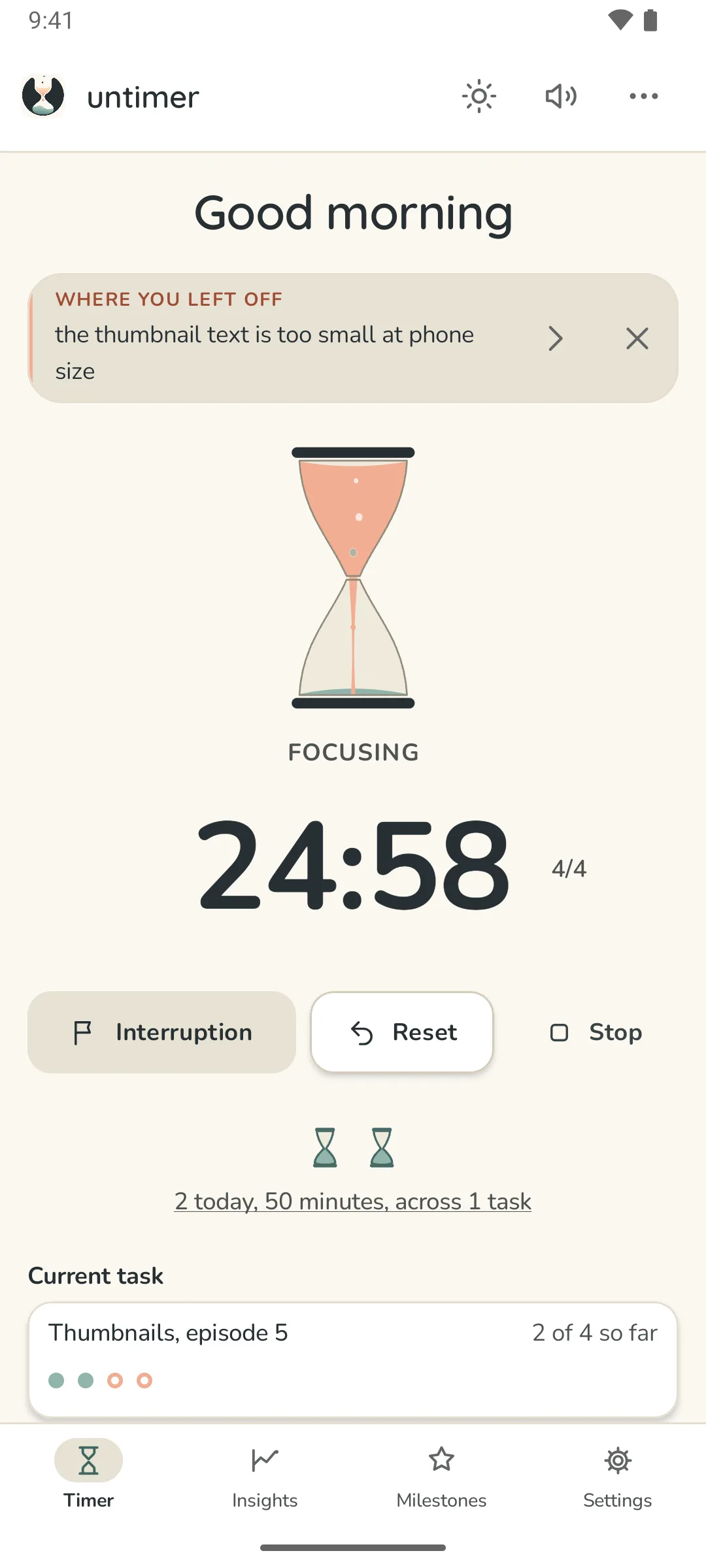
Leave the app or put the phone away. The session keeps running. Its end is a time stored on the server, and the phone counts down to it.
Away from the desk
Focus away from your computer.
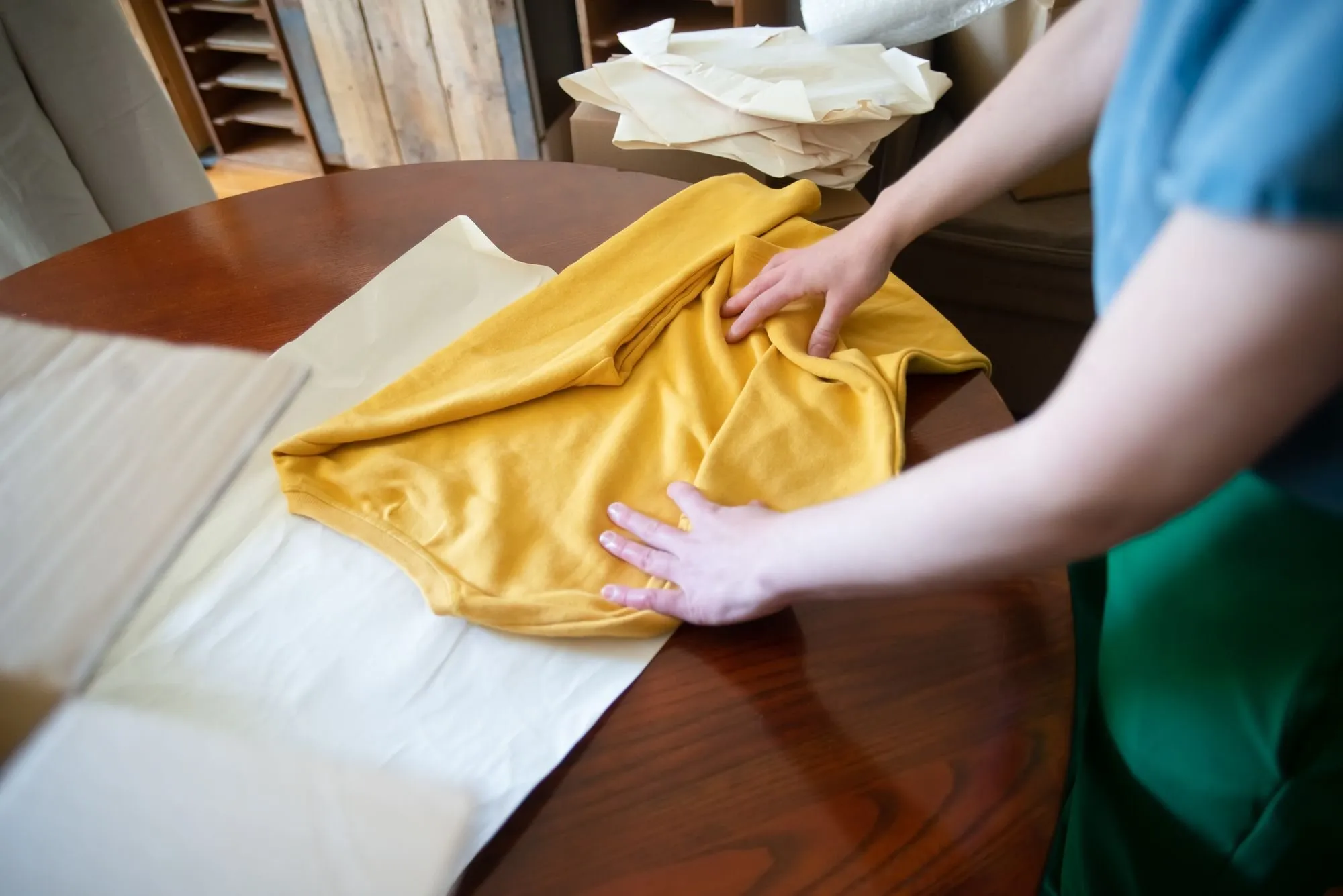
Some work happens away from a screen. You clean a room or sort out the garage. You read a chapter on paper or cook a long meal. Any job that needs 25 minutes of steady attention can be a session.
Wind the hourglass and put the phone in your pocket. The notification tells you when the session ends. You can note an interruption there too.
A session you start at the desk is on the phone when you pick it up. The note you wrote and its task come with it. The Days list shows the whole day in one place.
The same timer
Learn it once and use it on both.
Winding feels the same on a phone. You hold for the same 2.5 seconds and feel the same clicks.
Days, Insights and Milestones show the same data on both. A session you run on the phone shows up on your computer. A note you write on your computer shows in the message box on the phone.
Your account works the same way on both. So does the download of your data. The phone adds the countdown on the lock screen and the alarm at the end.
Release
Hear about it on the day it ships.
Untimer is built by one person. The web app came first because most sessions happen at a desk. The Android app is built and in daily use. It is waiting for its listing on Google Play.
Want to know when it ships? Send a short email. You get 1 reply on the day it ships.
Meanwhile
The web app already works on your phone.
Open app.untimer.com on your phone and add it to your home screen. It opens in its own window. A session keeps running when the phone puts the tab to sleep.
Add it to your home screen
- Open app.untimer.com in Chrome.
- Open the browser menu and choose "Add to Home screen" or "Install app".
- Sign in once and it stays signed in.