
How Untimer counts a day
Untimer counts a day in 25 minute sessions of the same size. Here is what a session records and how the day is drawn. It also shows what changes when you count in sessions and stop guessing in hours.
Read the articleArticle
A session from the first hold to the break, and the 4 screens around it. This guide covers each control and what it does.

Untimer gives you one timer, and it is an hourglass. A session is 25 minutes. A set is 4 sessions, and a break follows each session. This guide walks through a session and the screens around it.
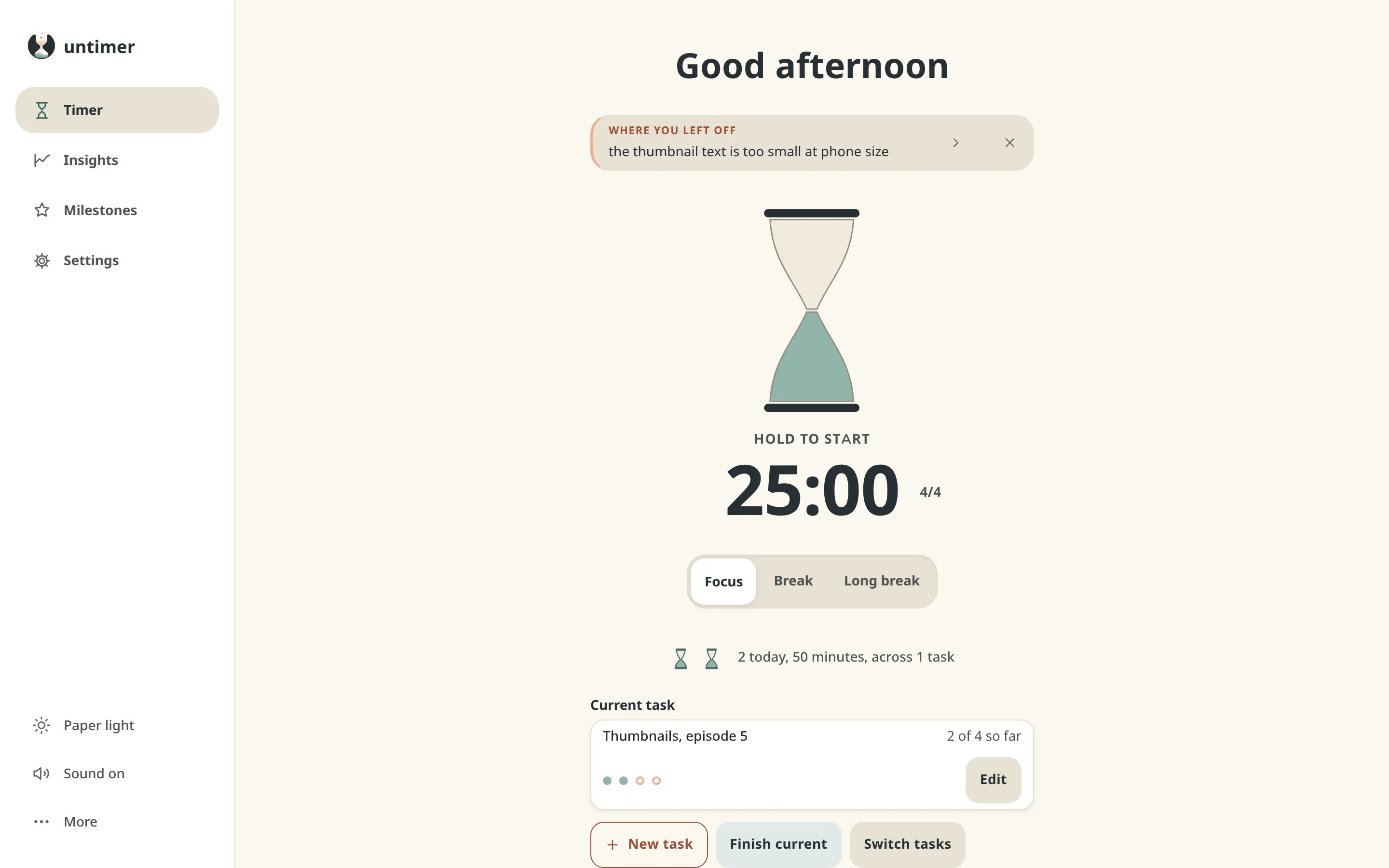
Press the hourglass and hold it. A spring winds up for 2.5 seconds and clicks as it goes. Let go at the stop and the session starts. If you let go early, the hourglass unwinds and no session starts.
On a keyboard, hold Enter or Space and let go at the stop. If you use switch access or voice control, a separate labelled action winds the hourglass for you. It works with a screen reader too.
Why you hold the hourglass explains the reason behind the hold.
Three controls sit under the time.
The minutes left show in the browser tab title. A bell sounds when the sand runs out, also when the tab is in the background. The small figure beside the time says which session of the set you are on, for example 2/4.
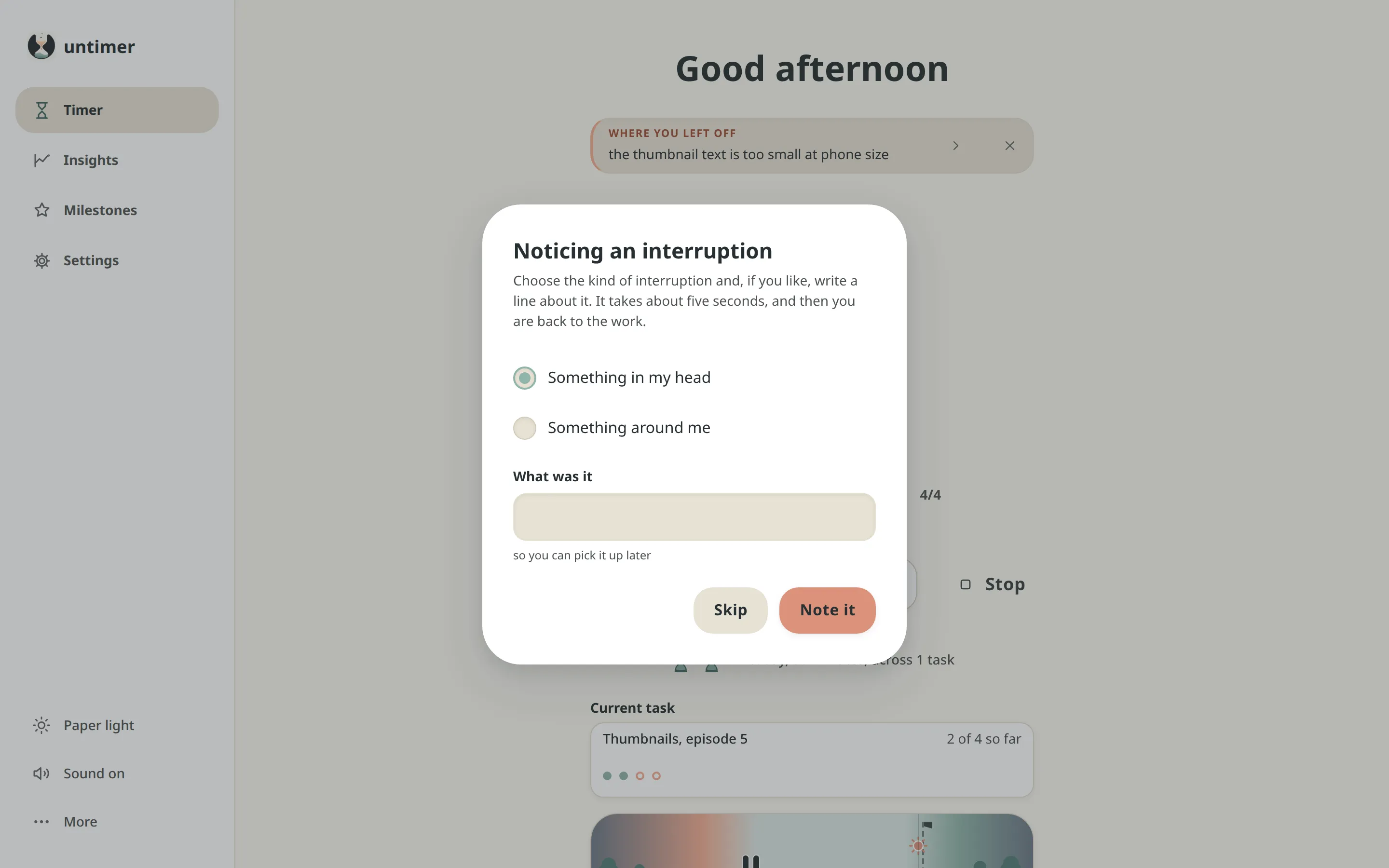
The card under today’s sessions is the task you are on. It shows the task’s name and a row of dots. Filled dots are the sessions you gave it. Empty dots are the sessions you guessed it still needs.
New task asks for a name and a guess in sessions. Finish current marks the task done. Switch tasks opens the full list, and your 3 most recent tasks sit under the buttons. You can also start a session with no task at all.
With Plus, Sessions by task in Insights shows each finished task with your guess next to what it took. Your next guess gets closer.
When a session runs its full length, a break scene takes the place of the hourglass. The message box says what happened and names any milestone you reached. The break starts when you press Start the break. Press Focus instead to skip it.
After 4 sessions you get a long break of 25 minutes. Press the set figure beside the time to correct where you are in the set or to start it again.
The message box shows one item at a time. First comes what just happened. Then comes the line from your last interruption. Tips and facts about your sessions follow, and the arrow shows the next item.
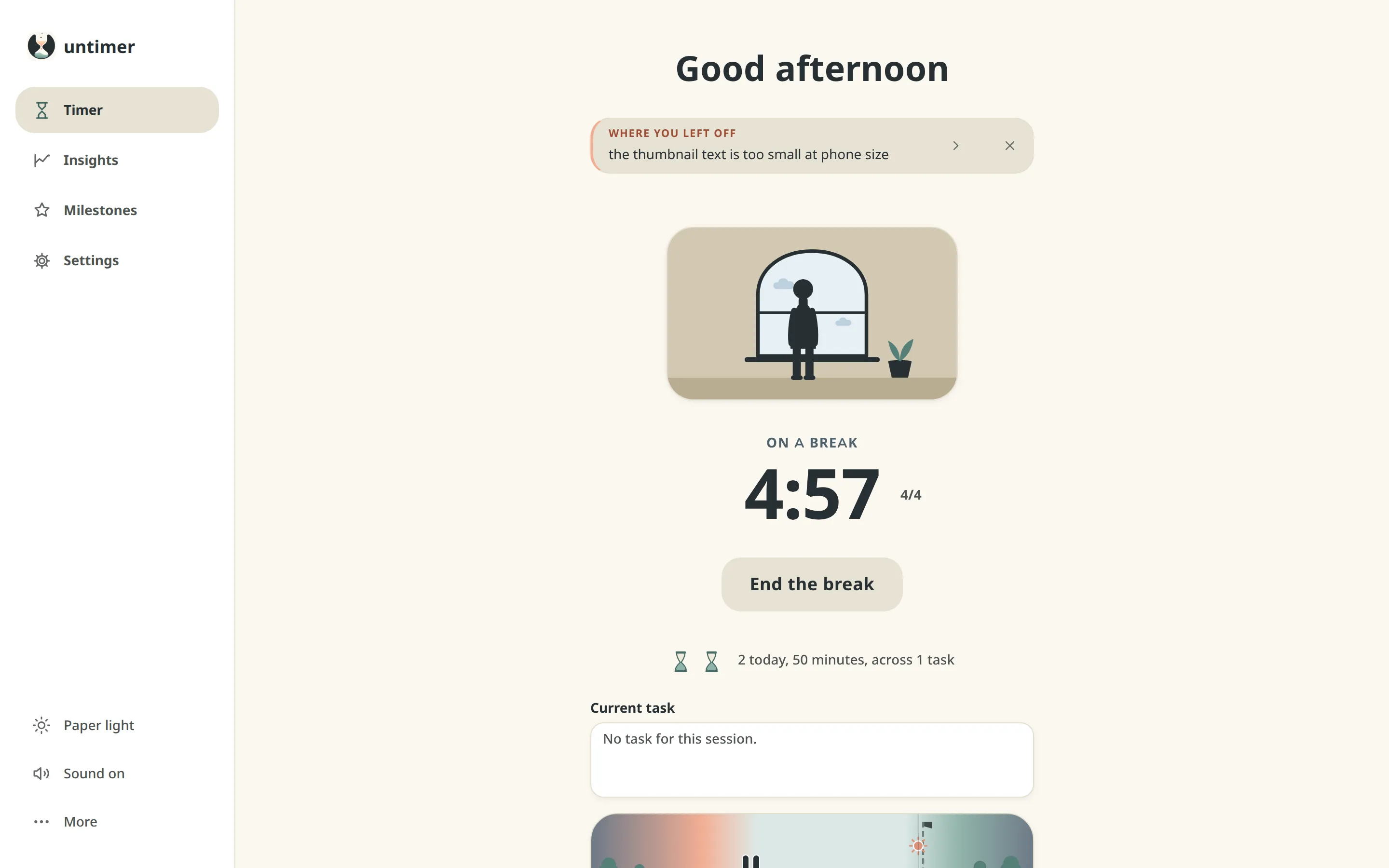
Timer is the screen you work from. It shows the hourglass and the time under the message box. Below them are today’s sessions, your task and the day strip.
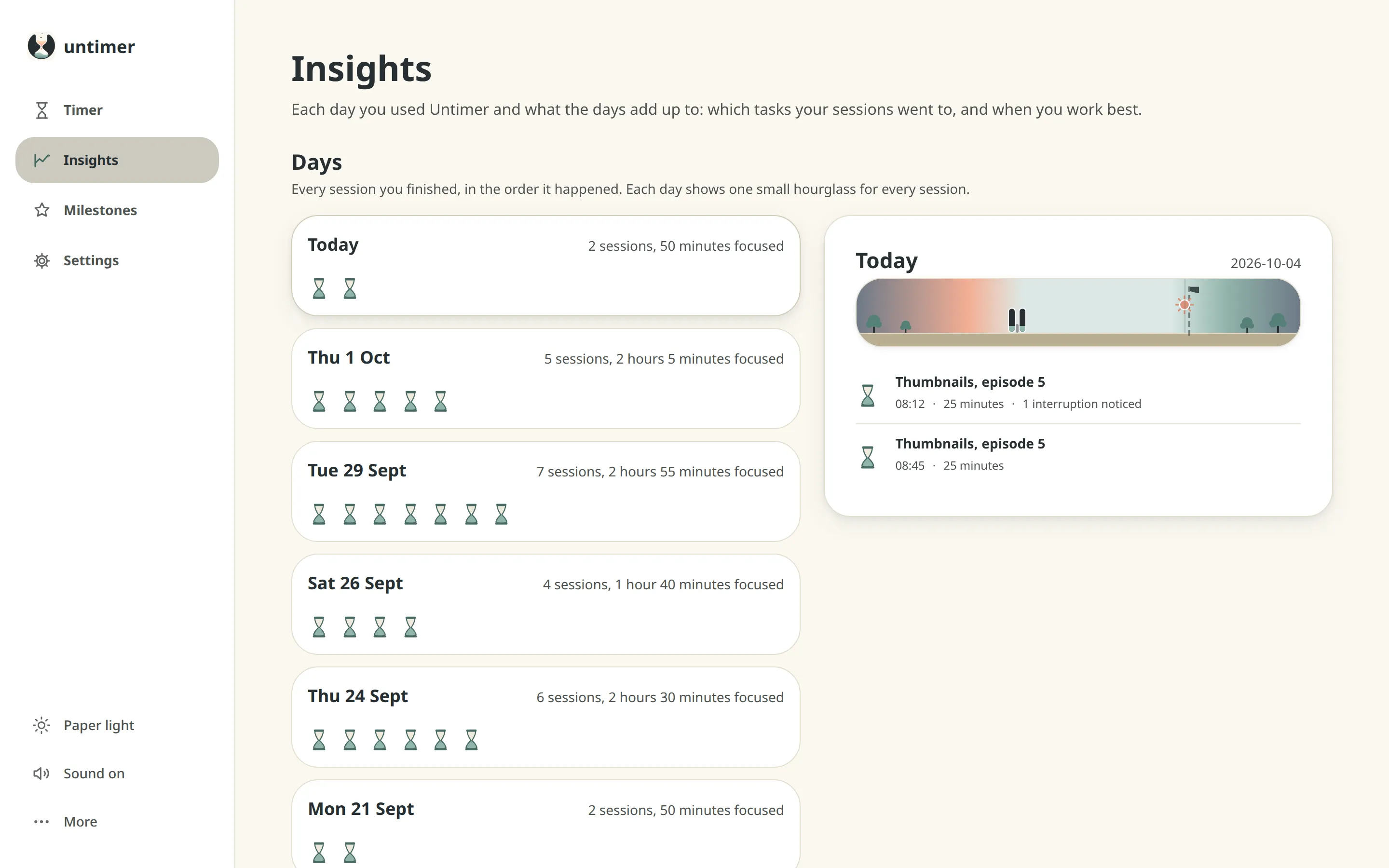
Insights shows what you did. Days lists each day with one small hourglass per session. Active days shows how many of the last 45 days had a session. Both are free, and Plus adds 8 more panels. Pricing shows each one.
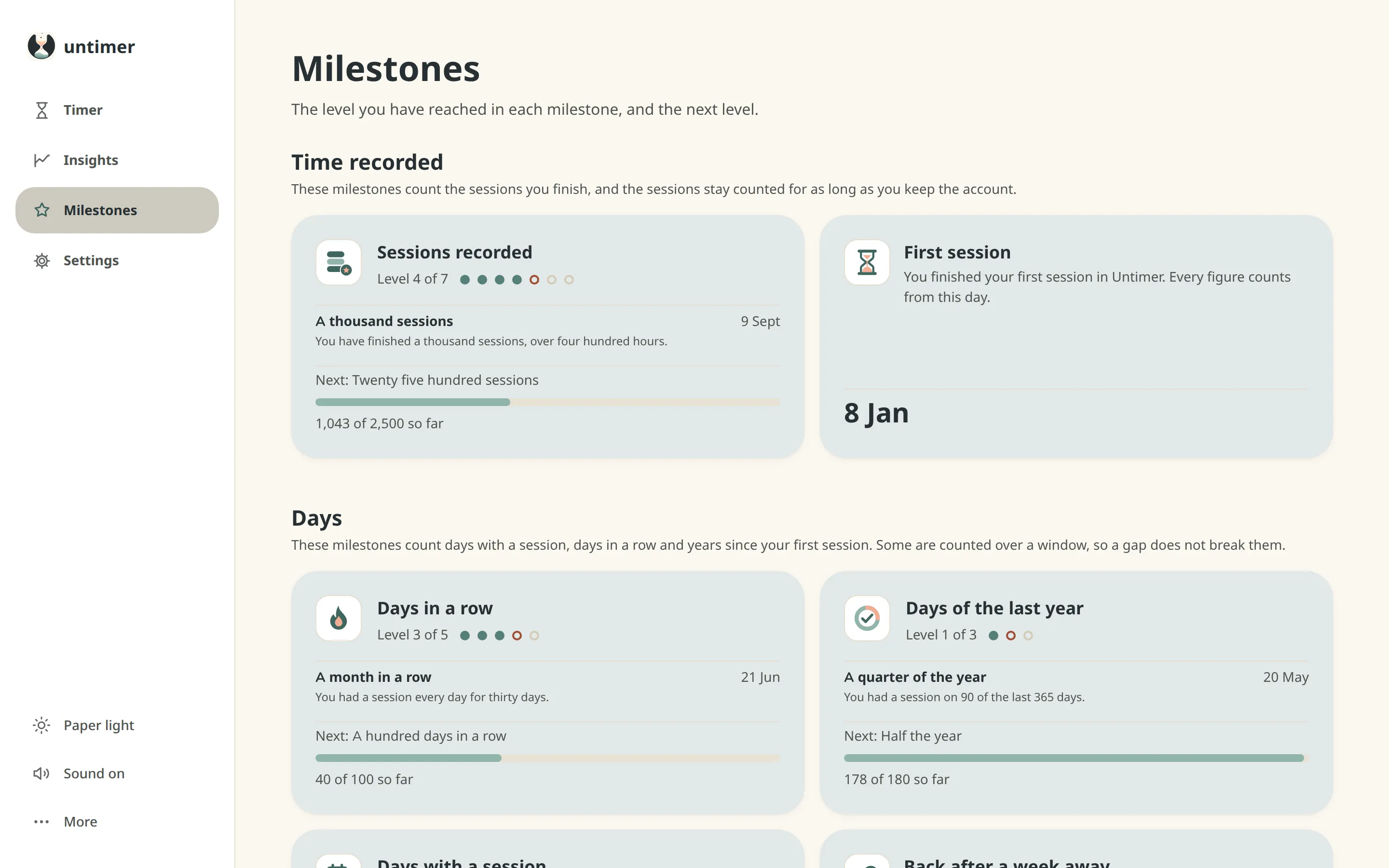
Milestones marks what you did, from your first session to your thousandth. Most milestones have levels. With Plus you also see how close you are to the next one.
Settings holds the end of your working day and a notice for when the bell cannot sound. It also holds your account, where you can download your data or delete it.
A session is 25 minutes. A break is 5 minutes and a long break is 25 minutes. A set is 4 sessions. The lengths are set for you, so you can start right away. Why 25 minutes explains the choice.
You choose 4 things. You set the end of your working day, the theme and the sound. You can also allow a notice at zero for the moment the bell cannot sound.
Untimer counts a day in 25 minute sessions of the same size. Here is what a session records and how the day is drawn. It also shows what changes when you count in sessions and stop guessing in hours.
Read the article
A game rewards you within seconds. A report rewards you weeks later. Milestones close that gap with facts about your sessions. Here is how they work and the research behind them.
Read the article